> For the complete documentation index, see [llms.txt](https://siff.gitbook.io/siff/llms.txt). Markdown versions of documentation pages are available by appending `.md` to page URLs; this page is available as [Markdown](https://siff.gitbook.io/siff/guides/sso-external-authentication/openid-connect-oidc.md).
# OpenID Connect (OIDC)
If you are using a well known provider such as Google then it's recommended to use the built-in types instead as it will simplify the configuration. The generic *OpenID Connect* option is to support other providers not in the list or perhaps hosted within your organization.
### Start SIFF Configuration
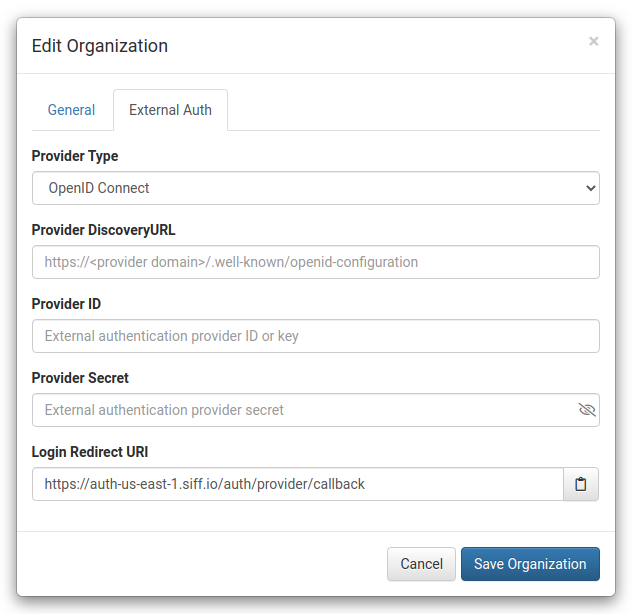
Edit the organization and set the *Provider Type* to *OpenID Connect*. For now leave the other fields empty.
### Setup your OpenID Provider
As this will depend on the OpenID implementation we cannot provide specific instructions. However the general steps are as follows:
1. setup a set of credentials / application for SIFF
* This will require the *Login Redirect URI* provided in the SIFF Edit Organization dialog.
* It may also require a set of authorized domains in which case use the domain name in the *Login Redirect URI*.
2. when complete save the ID and Secret as these will be needed to complete the SIFF configuration.
### Complete SIFF Configuration
Switch back to the SIFF *Edit Organization* dialog:
1. Configure the *Provider Discovery URL* which may be shown in the OpenID Provider configuration, or refer to the OpenID Provider documentation.
2. Copy the ID into the *Provider ID* field
3. Copy the Secret into the *Provider Secret* field
With the configuration complete refer to the [External Auth - Configuring Users](https://docs.siff.io/guides/external-auth/#configuring-users) section to switch/invite users to use the external authentication provider and test it out.